
Multi-Factor Authentication
Multi-Factor Authentication (MFA) provides an additional layer of security for your account. In addition to your password, Seraph Secure will require a One-Time Password (OTP) from an authenticator when you sign in to your dashboard.
Important!
Keep your one-time password and recovery codes secret
- Only enter your one-time password or recovery codes on the Seraph Secure website
- Do not share them with anyone
- Seraph Secure support will never ask for your one-time password or recovery codes
How to enable MFA
▶ Sign in to your Seraph Secure Dashboard
▶ Go to your Profile
▶ Select the Password & Security tab
▶ Scroll down to Multi-Factor Authentication
▶ Click Start Multi-Factor Authentication Setup
A QR code will be displayed
▶ Scan the QR code with your authenticator
Alternatively, click Set up manually instead and enter the code shown on your authenticator
▶ Enter the One-Time Password from your authenticator
▶ Click Enable Multi-Factor Authentication
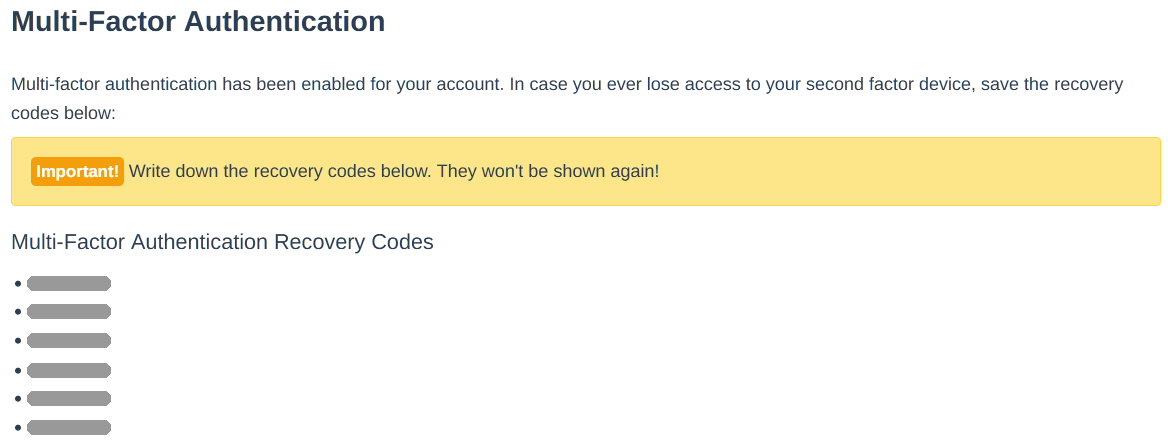
You should see "Multi-factor authentication has been enabled for your account." and a list of six Recovery Codes.
🖂 You will also receive a "Seraph Secure: Multi-Factor Authentication has been enabled" email.
Learn more about Recovery Codes
When you enable MFA, six Recovery Codes (8-digit numbers) will be shown.
If you lose access to your authenticator, a Recovery Code can be used to sign in to your account, or to disable MFA. Each Recovery Code can only be used once.
🖂 When a Recovery Code is used for your account, you will also receive a "Seraph Secure: Recovery Code used for Multi-Factor Authentication" email.
How to disable MFA
▶ Sign in to your Seraph Secure Dashboard
▶ Go to your Profile
▶ Select the Password & Security tab
▶ Scroll down to Multi-Factor Authentication
▶ Click Disable Multi-Factor Authentication
▶ Enter the One-Time Password from your authenticator
▶ Click Disable
If you no longer have access to your authenticator, you can use one of your Recovery Codes.
You should see "Multi-factor authentication has been disabled successfully."

🖂 You will also receive a "Seraph Secure: Multi-Factor Authentication has been removed" email.
Can I use email or text messages for MFA?
No, email and text messages (SMS) are less secure than using an authenticator. They cannot be used for MFA on your Seraph Secure account.
Help!
If you need help with MFA, please contact Seraph Secure support.